

Getting started
First, we’ll install the required packages:BRAINTRUST_API_KEY and TWELVE_LABS_API_KEY as environment variables:
Exporting your API key is a best practice, but to make it easier to follow along with this cookbook, you can also hardcode it into the code below.
Downloading or reading raw video data
Storing the raw video file as an attachment in Braintrust can simplify debugging by allowing you to easily reference the original source. The helper functionget_video_data retrieves a video file either from a local path or URL:
Setting up Twelve Labs video indexing
While traditional LLMs sometimes require processing individual frames, Twelve Labs can analyze entire videos through its powerful indexing system, making it more efficient for video understanding tasks. We also don’t need to manage the frames directly. Before we can ask questions about our videos, we need to create an index and upload our content to Twelve Labs. Let’s start by creating an index with the appropriate configuration:upload_video_to_twelve_labs that handles the video upload and indexing process. This function takes a video URL as input and returns a video_id that we’ll use later to query and analyze the video content.
video_id for the indexed video, and include the question-answer pair.
First, we’ll create video_id_dict to store video_ids so we don’t accidentally re-index videos:
load_data_subset function:
Prompting Pegasus
Next, we’ll define avideo_qa function to prompt Pegasus for answers. It constructs a prompt with the video_id, the question, and, for multiple-choice questions, the available options:
Evaluating the model’s answers
To evaluate the model’s answers, we’ll define a function calledevaluator that uses the LLMClassifier from the autoevals library as a starting point. This scorer compares the model’s output with the expected answer, assigning 1 if they match and 0 otherwise.
load_data_subset, uses video_qa to get answers from Pegasus, and scores each response with evaluator:
Analyzing results
After running the evaluation, navigate to Evaluations > Experiments in the Braintrust UI to see your results. Select your most recent experiment to review the videos included in our dataset, the model’s answer for each sample, and the scoring by our LLM-based judge. We also attached metadata like subject and question_type, which you can use to filter in the Braintrust UI. This makes it easy to see whether the model underperforms on a certain type of question or domain.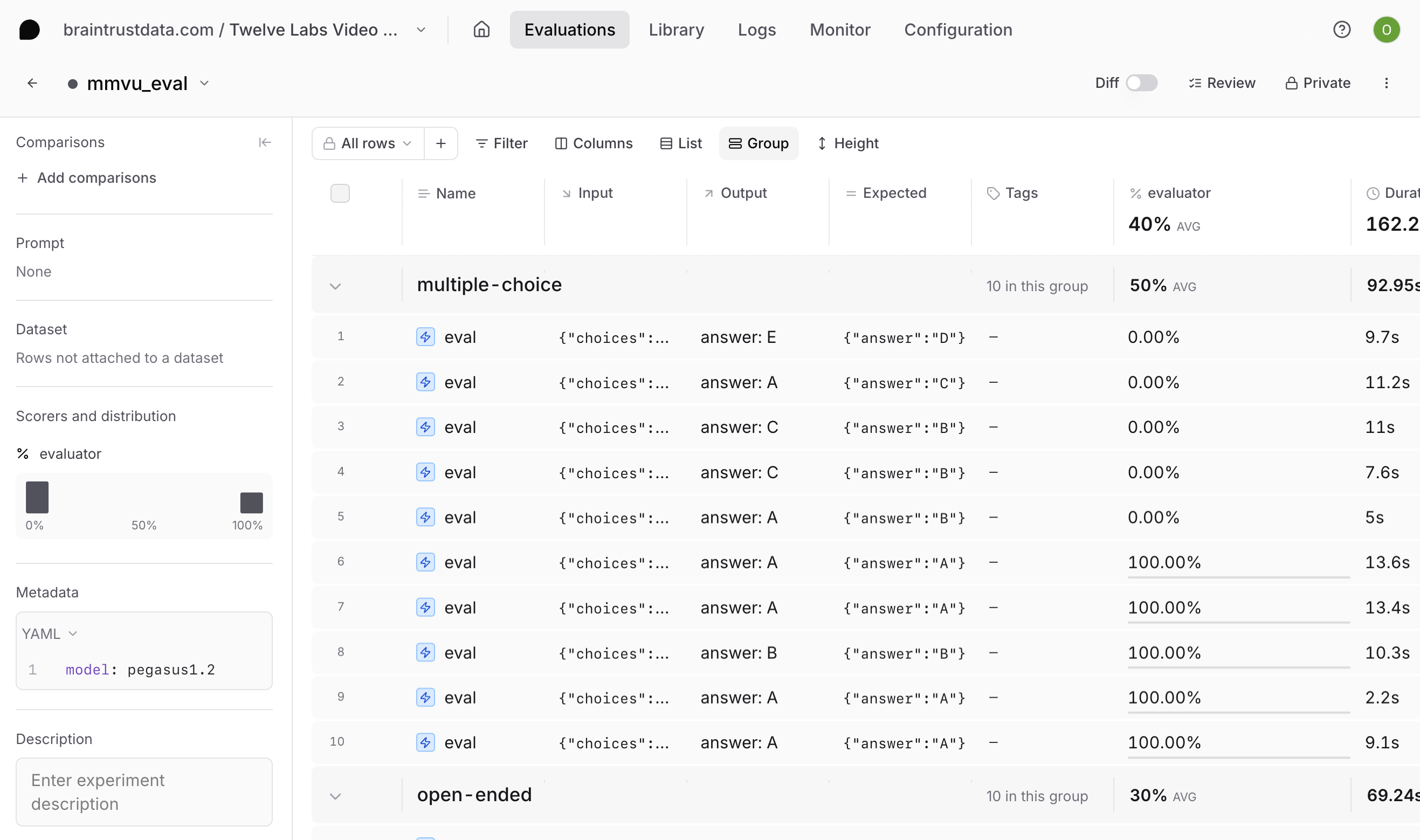
- Refining your model prompt with more subject-specific context
- Refining your LLM-as-a-judge scorer
- Switching models and running experiments in tandem
- Refining the QA dataset to optimize for a particular domain